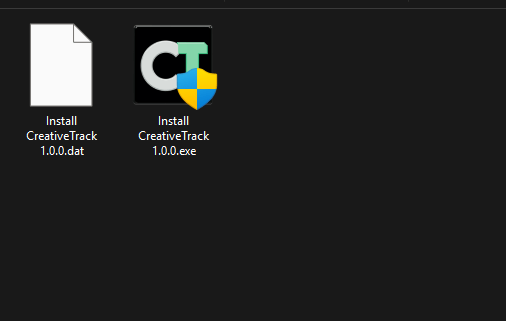
CreativeTrack setup uses a matching pair: Install CreativeTrack <version>.exe and Install CreativeTrack <version>.dat. Put both files in the same folder and keep them together until installation finishes.
Before you install
- Check the system requirements and choose the UE 5.8 installation you will use.
- Close all Unreal Editor windows.
- Back up active projects and CreativeTrack jobs before updating an existing installation.
- Use the EXE and DAT from the same official Creative Twins release.
The signed installer should identify Creative Twins LLC as its publisher. If your official download includes a checksum, compare it with the setup file. The installer also checks that the DAT matches the expected payload before extraction.
Install CreativeTrack
- Run
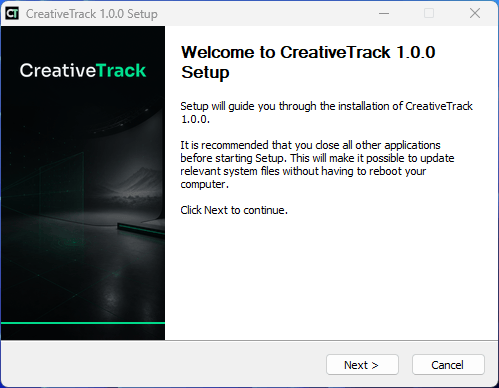
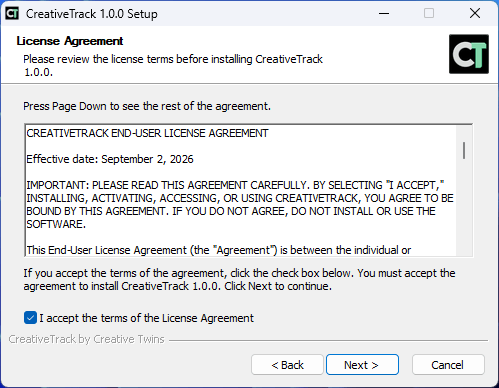
Install CreativeTrack <version>.exe and approve the Windows administrator prompt. - Read the CreativeTrack End-User License Agreement and accept it to continue.
- Choose the runtime installation folder. Keep source footage and production jobs in a separate location.
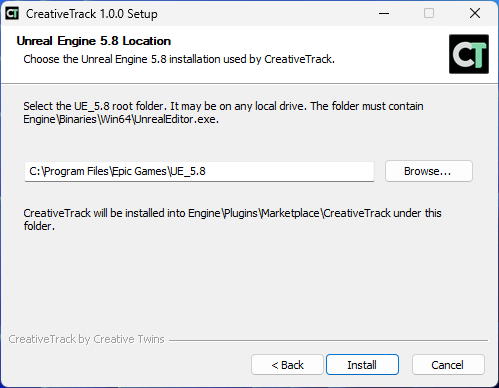
- Select the UE 5.8 engine root, such as
D:/Epic Games/UE_5.8. - Check that it contains
Engine/Binaries/Win64/UnrealEditor.exe, then complete setup. - Start Unreal Editor from that engine installation. Enable CreativeTrack if prompted.
- Open Window > Virtual Production > CreativeTrack and activate your workstation.
Find the installed plugin
The engine plugin is installed at <Unreal Engine Root>/Engine/Plugins/Marketplace/CreativeTrack. The runtime goes into the folder you selected during setup.
A project can also have its own local CreativeTrack plugin. If an update does not appear in Unreal, check which copy the project is loading before moving or deleting files. Back up the project and contact support if you are unsure.
Update or repair CreativeTrack
Close Unreal Editor, keep the new release’s EXE and DAT together, and run the installer again. Choose the intended runtime folder and UE 5.8 root. Setup replaces the CreativeTrack files in the selected plugin location.
If a runtime or model file is missing, rerun the matching installer or reinstall the package. CreativeTrack does not download missing components during a job. Do not delete individual installed files to reclaim storage.
Uninstall safely
- Back up jobs or custom files stored inside the runtime or plugin folders, then move them to a separate production folder.
- To transfer a license seat, select Deactivate License in CreativeTrack before uninstalling.
- Close Unreal Editor.
- Go to Windows Settings > Apps, select CreativeTrack and choose Uninstall.
Uninstall removes the installed runtime and the recorded engine plugin directory. Jobs stored separately in production or Unreal project folders are outside those locations. Removing the software does not release a workstation activation by itself.
For a missing DAT, payload mismatch or invalid engine folder, see troubleshooting.