
Activate CreativeTrack directly from Unreal using the Creative Twins account that owns your purchase. Sign in through your browser, or enter a license key if you prefer.
Sign in and activate
- Open Window > Virtual Production > CreativeTrack.
- Click the profile icon in the CreativeTrack header.
- Select Sign In to open browser authorization.
- Sign in with the Creative Twins account used for your purchase.
- Check the computer listed on the page. If several eligible purchases appear, choose the license you want to activate.
- Click Activate CreativeTrack.
- After the browser confirms activation, return to Unreal. CreativeTrack completes the connection automatically. Check that the profile shows ACTIVE.
Closed the browser tab? Use Open sign-in page again while the request is pending. If it expired, start a new sign-in from CreativeTrack. Select Cancel sign-in to stop a pending attempt.
Use a license key
- Open the CreativeTrack profile menu.
- Select Licenses to open your Creative Twins licenses and find the purchase key.
- Return to the profile menu and expand Use a license key instead.
- Enter the key and click Activate CreativeTrack.
- Confirm active access before starting a job.
Your license key is private. Do not share it, an activation file or a sign-in link in public screenshots, forum posts or support discussions.
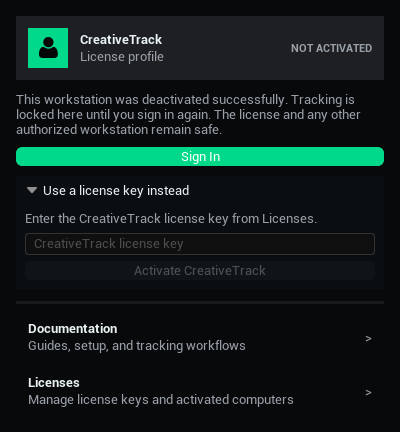
Use CreativeTrack on two workstations
An individual CreativeTrack runtime license supports two simultaneous workstation activations. Open Licenses to see the computers linked to your purchase and manage your available seats.
Move a seat to another computer
- On the computer you want to release, open the profile menu and select Deactivate License.
- Check the confirmation, then approve deactivation.
- On the other workstation, use CreativeTrack’s Sign In flow to activate it.
Deactivation releases this computer’s seat. It does not cancel your purchase, delete saved projects or deactivate another computer. Reactivate this workstation before starting new tracking jobs on it.
Recover a seat from an unavailable computer
Open Licenses in your Creative Twins account and check the activated computers. Deactivate the old workstation if the option is available. If you cannot release it, contact Creative Twins for help. Reinstalling or resetting Windows may require a new activation.
Refresh access and work offline
Select Refresh License after resolving an account or payment issue, or whenever you need to check your access. CreativeTrack also checks in the background and quietly retries temporary connection failures.
New tracking jobs use the authorization saved on your workstation. Valid saved authorization can support offline work when the licensing service is unreachable, but it does not extend an expired paid period. Monthly and annual access follow their paid terms. Perpetual access to a covered release is separate from its updates or support period.
An expired, revoked or deactivated license prevents new jobs. Your existing projects and saved results remain accessible, and a license check does not interrupt a tracking job already running.
Fix an activation problem
- No license found: sign in with the account that owns the purchase.
- Device limit reached: release a workstation you no longer use, then sign in again.
- Sign-in expired: start a new Sign In request from Unreal.
- Temporary service problem: check your connection and try again later. Repeated requests cannot restore an unavailable service.
- Access ended or denied: check the plan and purchase status in your account. Once resolved, select Refresh License.
Still need help? The troubleshooting guide lists the details to include in a support request.
