
Upcoming initial release
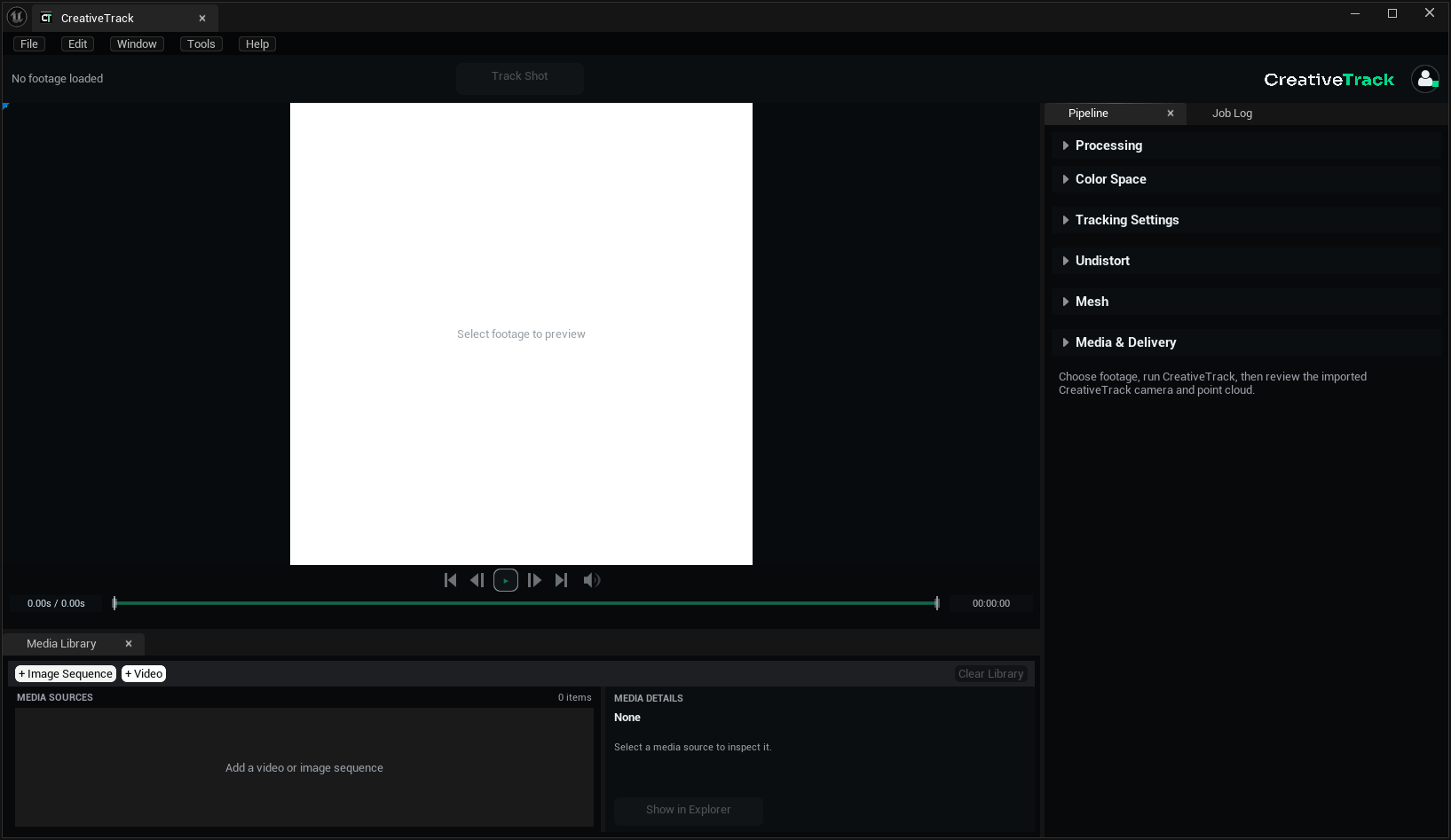
Automatic 3D camera tracking. Dense point clouds. 3D scene reconstruction. CreativeTrack brings the shot into Unreal with lens, depth, masking and Composure tools ready for the work ahead.
Not released yet. These notes cover the completed feature set prepared for the initial release. September 11, 2026 is the notes date, not a launch date. The release date has not been announced.
What's included
Automatic tracking and media
- Automatic 3D camera tracking. Solve camera movement from video or image sequences and create a tracked camera for Unreal. Track your first shot.
- Dense point clouds. Create a spatial reference for scene placement, alignment and cleanup. Explore point-cloud tools.
- Media Library and playback. Import sources, inspect their details, set sequence frame rates and choose the In/Out range. Prepare your footage.
- Subject masking. Name the subjects to exclude from tracking and export reusable instance-ID masks. Set up masks.
- Color management. Configure OCIO input and output spaces separately for viewing, tracking preparation and delivery conversion. Set the color spaces.
Lens calibration and depth
- Automatic lens calibration. Analyze distortion after tracking, with selectable lens models, analysis ranges and samples. Keep the source and generate corrected media when the correction is accepted. Configure the lens.
- STMaps and Unreal Lens Files. Export undistort, redistort and combined Unreal RGBA maps in 32-bit float EXR. Compare the lens models.
- Depth maps. Export 32-bit float EXR sequences containing camera-space Z in meters. Physical scale remains estimated without a measured reference. Use depth in your shot.
- Lens-corrected depth. Preserve original depth and create a separate corrected sequence for the corrected plate, with the correct path recorded in scene metadata. Match depth and plates.
- Unreal depth compositing. Drive a Composite Depth Mesh from exported depth in scenes configured for depth compositing. Explore the setup.
3D reconstruction and automatic Unreal setup
- 3D scene reconstruction. Generate Fast Mesh or High Quality Mesh during tracking or from a saved camera solve. Choose surface detail and Fast Mesh frame coverage. Build reconstruction geometry.
- Projection geometry. Use reconstructed surfaces and a separate Projection Dome when the plate needs additional projection coverage. See the reconstruction workflow.
- Automatic Unreal and Composure setup. Import the camera, Level Sequence, point cloud, plate media and generated shot assets. CreativeTrack creates the Composure layers and connects the supplied mask media; the shadow/reflection layer starts disabled. Open the import guide.
- Floor alignment. Select ground points and align the tracked hierarchy together, with reset and saved-floor controls for adjustments. Align your scene.
- Point-cloud cleanup. Select points or actors, isolate regions, manage visibility and remove unwanted point data. Clean up the cloud.
- Static meshes and collision. Generate geometry or collision from selected LiDAR data, with error-tolerance and grouping controls. Create meshes and collision.
- Extract and merge. Turn selected regions into assets or combine point-cloud sources while choosing whether to keep the originals. Organize point-cloud assets.
Delivery, installation and recovery
- Media conversion. Export EXR, PNG or JPG sequences with resolution and color controls during tracking or as a separate conversion. Prepare delivery media.
- Organized job files. Keep tracking, media, meshes, lens maps, Unreal scene files and logs together. Find your outputs.
- Saved-job recovery. Rebuild an export, import a generated scene or reconstruct a mesh from usable saved tracking. Reuse a completed solve.
- Progress and logs. Follow stage status, open the job’s files and copy reports for troubleshooting. Read job progress.
- Windows setup and activation. Install the matching UE 5.8 package and manage workstation access through the profile and account. Install CreativeTrack.
