
Set the ground without rotating every asset by hand. Open Window → Virtual Production → CreativeTrack Alignment, select ground points from one imported shot and click Align Selected Floor. CreativeTrack fits the floor and moves the tracked hierarchy together.
Choose the ground points
- Find the imported shot and its LiDAR point cloud.
- Open CreativeTrack Alignment.
- Choose Marquee, Polygon, Lasso, Paint or another point-selection tool.
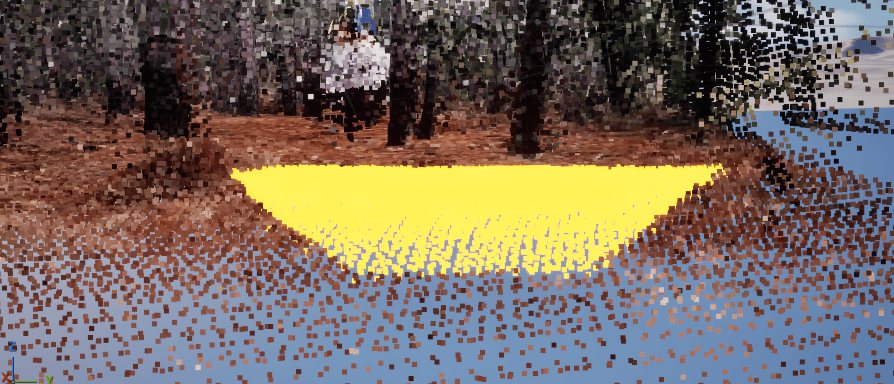
- Select a broad patch of the surface you want to use as the floor.
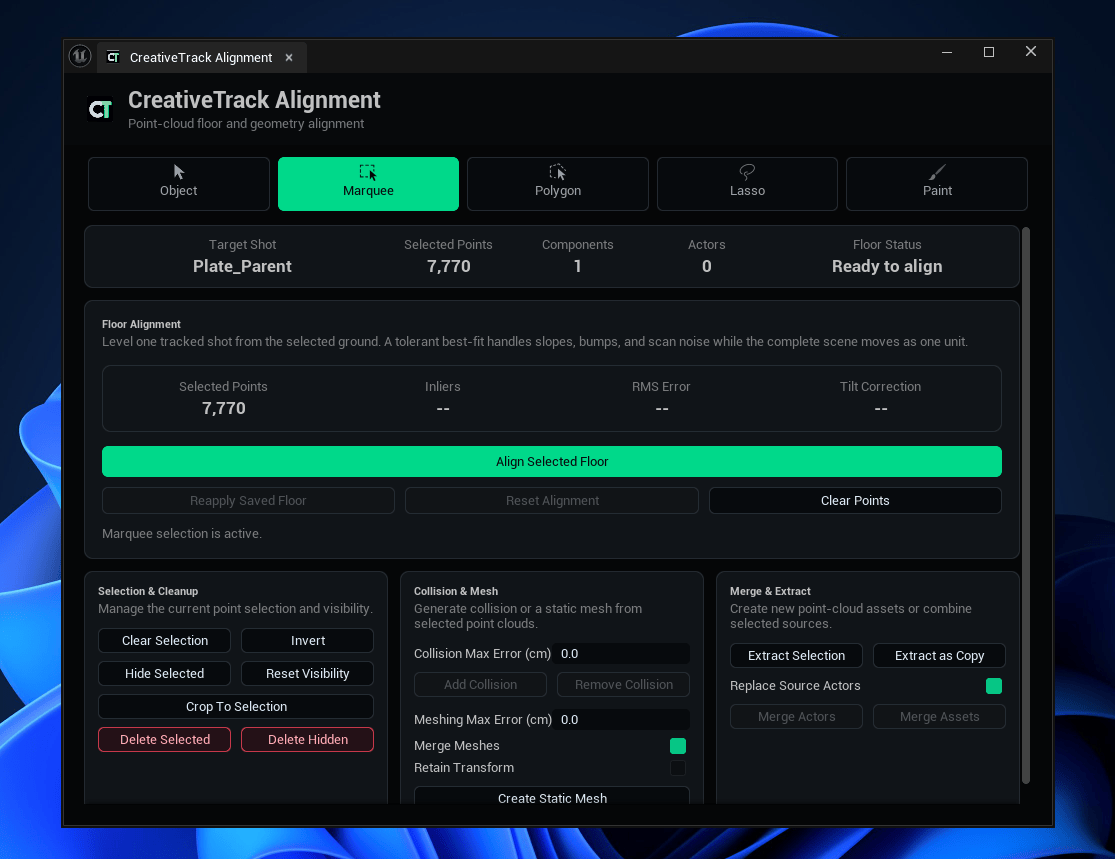
- Check Target Shot, Selected Points and Floor Status.
The action needs at least three selected points from one shot. That enables the tool, but does not guarantee a good fit. Select a broad ground patch instead of a narrow line or a few nearby points.
Select point-cloud data, not just the reconstruction mesh. Keep the selection within one shot and exclude objects above the intended floor.
Align the scene
Click Align Selected Floor. CreativeTrack fits the selected ground and transforms the complete tracked hierarchy to Unreal’s floor. The fit tolerates noise and bumps, but your selection must still represent the intended ground.
| Readout | What it shows |
|---|---|
| Target Shot | The imported shot linked to the selection or saved floor reference. |
| Selected Points | Number of selected floor candidates. |
| Components / Actors | Point-cloud components and actors in the selection. |
| Floor Status | Whether the selection is missing, too small, spans shots or is ready. |
| Inliers | Points accepted by the fitted plane. |
| RMS Error | Reported fit error in centimeters. |
| Tilt Correction | The applied correction in degrees. |
Check the viewport, not just the numbers. Confirm the ground position and orientation, and that the camera and projection geometry remain together. Low error does not prove you selected the right surface.
Reset or reuse the alignment
| Control | Action |
|---|---|
| Reset Alignment | Restore the transform saved before the first floor alignment. |
| Reapply Saved Floor | Apply the saved floor reference after the parent has moved or been reset. |
| Clear Points | Clear the point selection without removing the saved floor reference. |
To retry, select Reset Alignment, improve the ground selection and run Align Selected Floor again. Alignment, reset and reapply are Unreal transactions and support Undo. Save the level when you accept the result.
For Selection spans shots, clear unrelated points and select one shot. For Select at least 3 points, select an area of the cloud with a point-selection tool.
Use selection and cleanup to isolate the ground when unwanted points get in the way.
